# React equipment rental calendar
[](https://resource-scheduler-docs.vercel.app/launch.mp4)
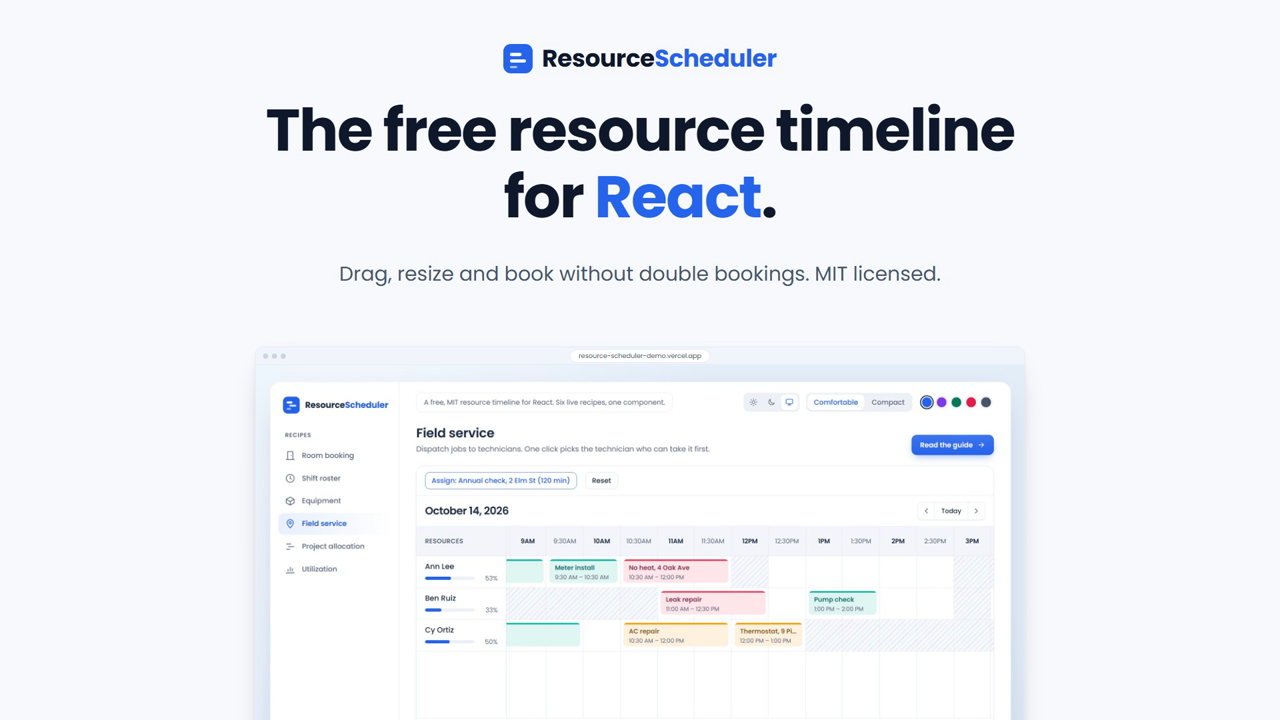
A rental calendar has the things you rent down the side and the days across the top. Some things are one unit (a van), some are a pool (three projectors), one is in for service on a day, and the question you get all day is "when is it free for three days?". This tutorial builds that with [Resource Scheduler](https://github.com/mdobaid311/resource-scheduler) in seven steps. It is the same component running below.
*See it running live:* [*interactive demo*](https://resource-scheduler-docs.vercel.app/tutorials/react-equipment-rental-calendar/)*.*
Try three things. Drag the Delivery van booking to Tuesday on the projectors: three projectors are already out that day, so the drop turns red and nothing moves. Drag it to the PA system on Wednesday: that day is a service day, so it is refused too. Then pick "3 free days" for the PA system and press Find: the grid jumps to the first stretch that is free.
## 1\. Install
```bash
npm install resource-scheduler
```
Works with React 18 and 19. Import the stylesheet once; it is scoped, so it does not restyle the rest of your page:
```tsx
import "resource-scheduler/dist/resource-scheduler.css";
```
## 2\. Things you rent are rows, and a pool is one row
Each thing is a resource. A pool of identical units is still one row: `capacity` says how many units are in stock. A service day is a range in `unavailable`:
```tsx
import type { ResourceInput } from "resource-scheduler";
const items: ResourceInput[] = [
{ id: "projector", name: "Projector (3 units)", capacity: 3 },
{ id: "camera", name: "Camera kit (2 units)", capacity: 2 },
{ id: "pa", name: "PA system", unavailable: [{ start: new Date(2026, 9, 7), end: new Date(2026, 9, 8) }] }, // serviced on Wednesday
{ id: "van", name: "Van" }, // capacity defaults to 1
];
```
In a database this is an `items` table with a `units` column, plus a table of service windows that you turn into `unavailable` ranges.
## 3\. A rental is whole days, and the end is exclusive
A rental is an event on the row it takes from. Rentals are whole days, so the dates are midnights, and `endDate` is exclusive: it is the morning after the last day rented. A three-day rental from the 5th to the 7th ends on the 8th:
```tsx
import type { SchedulerEvent } from "resource-scheduler";
const rentals: SchedulerEvent[] = [
{
id: "r1",
title: "Acme Co",
resourceId: "projector", // the row it belongs to
startDate: new Date(2026, 9, 5), // pickup day, midnight
endDate: new Date(2026, 9, 8), // exclusive: the last day rented is the 7th
},
];
```
If your table stores the last day rented, add one day when you load a row. Events are a flat list that names its row with `resourceId`, so the list can come straight from one query.
## 4\. Draw the week
```tsx
import { ResourceScheduler, ViewType } from "resource-scheduler";
```
The component fills its parent, so the parent needs a height. Each prop is one rule:
| Prop | What it does |
| --- | --- |
| `blockUnavailable` | No rentals on a service day: the shaded days refuse a drop and a selection |
| `showUtilization` | A bar per item: unit-days rented against unit-days in stock ([utilization](https://resource-scheduler-docs.vercel.app/guides/utilization/)) |
| `availableViews` | Week and month only; for hourly rental use the day view and `slotDuration` |
| `weekStartsOn={1}` | The week starts on Monday |
## 5\. Never more rentals than units
`eventOverlap={false}` is right for a single unit, but a pool of three projectors may overlap up to three times. `capacity` only feeds the utilization numbers, so enforce the count yourself. `isValidDrop` is a final veto: it runs for every move, resize and selection, with the row and range being tried, and `false` refuses it.
The count of bookings only changes where a booking starts, so check those moments:
```tsx
import { rangesOverlap } from "resource-scheduler";
// Whether one more booking on [start, end) fits next to `others` without more than
// `capacity` at any moment. The count only changes where a booking starts, so check those.
const fits = (others: SchedulerEvent[], start: Date, end: Date, capacity: number) => {
const busy = others.filter((e) => rangesOverlap(start, end, e.startDate, e.endDate));
const moments = [start, ...busy.map((e) => e.startDate).filter((t) => t > start)];
return moments.every((t) => busy.filter((e) => e.startDate <= t && t < e.endDate).length < capacity);
};
```
Then pass the rule. The rental being moved is left out of the count, so dragging it a day does not collide with itself:
```tsx
fits(
rentals.filter((e) => e.resourceId === resourceId && e.id !== event.id),
start,
end,
items.find((i) => i.id === resourceId)?.capacity ?? 1
)
}
/>
```
A plain "count the overlaps" would refuse a booking that fits between two others that never overlap each other; checking at each start does not. A row with no `capacity` counts as one unit, so the rule covers the van too.
## 6\. Take bookings with your own form
In the week view a click or a drag across days selects whole days, and `onSlotSelect` hands you the row and range. Show your own form and save the rental, and handle moves with `onEventDrop`:
```tsx
const [events, setEvents] = useState(rentals);
const [draft, setDraft] = useState(null);
setEvents((all) => all.map((e) => (e.id === event.id ? { ...e, resourceId: to, startDate: start, endDate: end } : e)))
}
/>
{draft && (
)}
```
Selections go through `isValidDrop` and `blockUnavailable` too, so a full day or a service day cannot be selected in the first place. `SlotSelection` is exported as a type. A callback is the opt-in: without `onEventDrop` a dropped rental snaps back.
## 7\. Find N free days
"When can I have the PA system for three days?" is a search over the item's rentals and service time. `findAvailableSlots` does it: give it a resource that carries its events (`withEvents` attaches them), a window, a `duration` and a `step`, both in minutes. A `step` of 1440 starts every candidate on a whole day:
```tsx
import { findAvailableSlots, withEvents } from "resource-scheduler";
import type { ResourceSchedulerHandle } from "resource-scheduler";
const ref = useRef(null);
const find = (days: number, itemId: string) => {
const resource = withEvents(items, events).find((r) => r.id === itemId)!;
const from = new Date();
from.setHours(0, 0, 0, 0); // start of today
const to = new Date(from);
to.setDate(to.getDate() + 120);
const [slot] = findAvailableSlots(resource, { from, to, duration: days * 1440, step: 1440, limit: 1 });
if (!slot) return alert(`No ${days} free days for ${resource.name} in the next 120 days`);
ref.current?.goTo(slot.start); // scroll the grid to it
};
```
`from` is today's midnight so the first candidate is today, not the next whole day after this minute. The search skips rentals and service days, so a three-day stretch is only offered when the three days are all free.
> **It is for single-unit items.** `findAvailableSlots` treats any overlap as busy. That is right for the van and the PA system, but a projector with two units out and one free would be reported as busy. For a pool, step through the days yourself with `fits`.
### Check it on the server too
The browser check is a courtesy: a second browser can book the last unit after yours has loaded, and anyone can call your API without the grid. `fits` is a plain function of dates and rows, so the server can run exactly the same one inside the transaction that inserts the rental. `isPlacementAllowed` applies `isValidDrop` and `eventOverlap` together:
```ts
import { isPlacementAllowed } from "resource-scheduler";
import type { Resource, SchedulerEvent } from "resource-scheduler";
export function canRent(item: Resource, rental: SchedulerEvent) {
return isPlacementAllowed(
rental,
{ resourceId: item.id, start: rental.startDate, end: rental.endDate },
[item], // the item with its current rentals, read inside your transaction
{
isValidDrop: (r, { start, end }) =>
fits(item.events.filter((e) => e.id !== r.id), start, end, item.capacity ?? 1),
}
);
}
```
Return an error (HTTP 409 is the usual choice) when it is `false`. This check covers stock only; reject a rental that touches a service day with your own query against the service table.
## Where next
* The finished [equipment rental recipe](https://resource-scheduler-docs.vercel.app/recipes/equipment-rental/) is the same code with notes on quantities, turnaround time and pickup hours.
* Prices, deposits and customer details belong on the booking row in your database, not in the scheduler.
* Share the bookings as a calendar file or a spreadsheet: [Export](https://resource-scheduler-docs.vercel.app/guides/export/).
* Other builds: the [room booking tutorial](https://resource-scheduler-docs.vercel.app/tutorials/react-room-booking-calendar/), the [shift planner tutorial](https://resource-scheduler-docs.vercel.app/tutorials/react-shift-planner/), the [clinic appointment board tutorial](https://resource-scheduler-docs.vercel.app/tutorials/react-clinic-appointment-board/) and the [free resource timeline](https://resource-scheduler-docs.vercel.app/tutorials/free-react-resource-timeline/).
* Coming from another library? The [comparison](https://resource-scheduler-docs.vercel.app/compare/alternatives/) lists what each one includes.
* * *
*Originally published at* [*https://resource-scheduler-docs.vercel.app/tutorials/react-equipment-rental-calendar/*](https://resource-scheduler-docs.vercel.app/tutorials/react-equipment-rental-calendar/)*.*